How to edit your schedule
Updated Thu Jun 04 2026 00:00:00 GMT+0000 (Coordinated Universal Time)
Your schedule is the grid of time slots customers can book. Both Admin and Cashier roles can edit it.
Open and edit the schedule
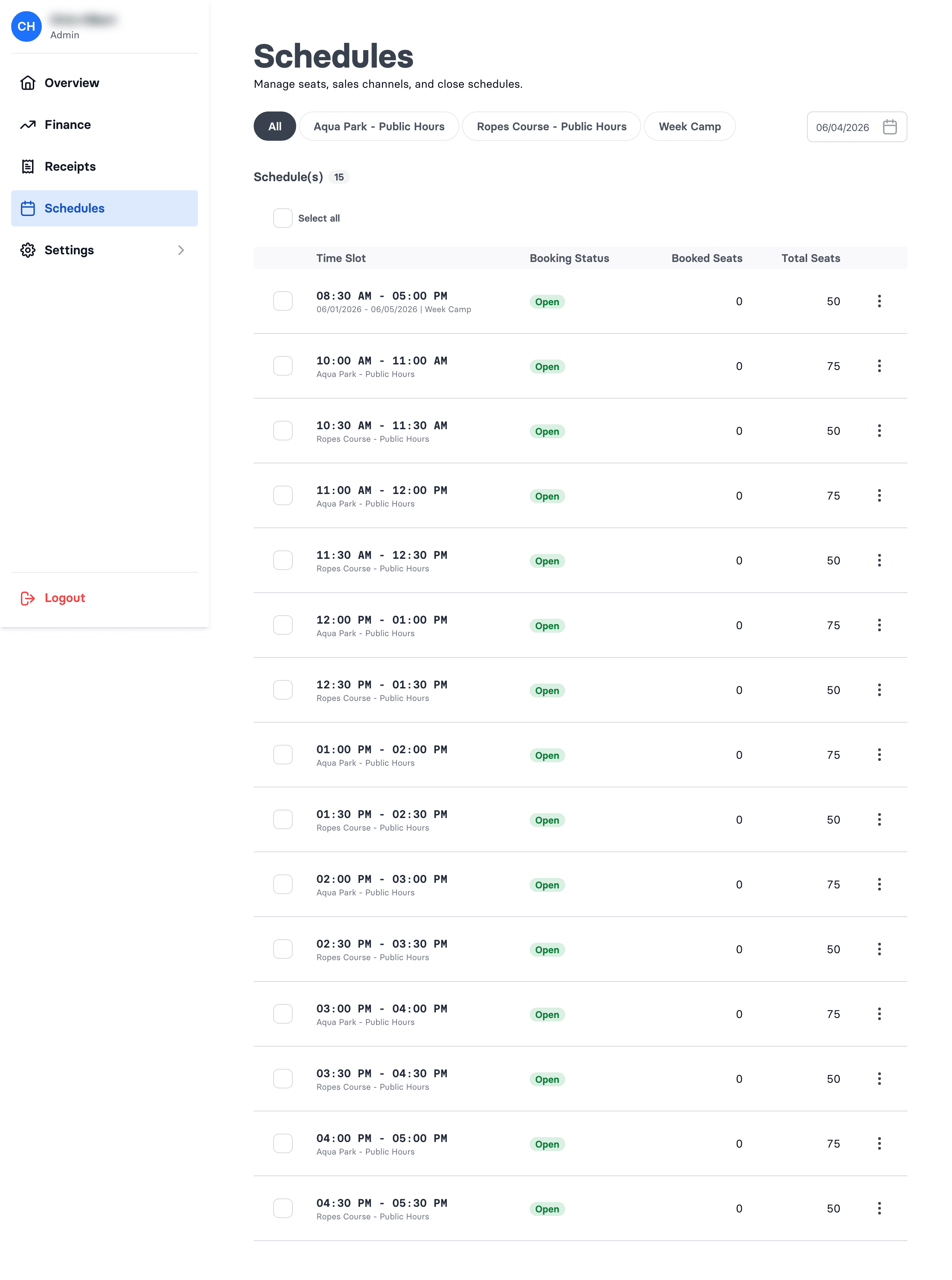
- Go to Admin → Schedules.
- Filter by offer (the chips at the top) and pick a date — the grid shows that day's slots, with Booked Seats and Total Seats.
- Open a slot's ⋯ menu and choose Edit (or tick several slots and use the Edit button to bulk-edit).
- Change the fields you need and click Save.
What you can change
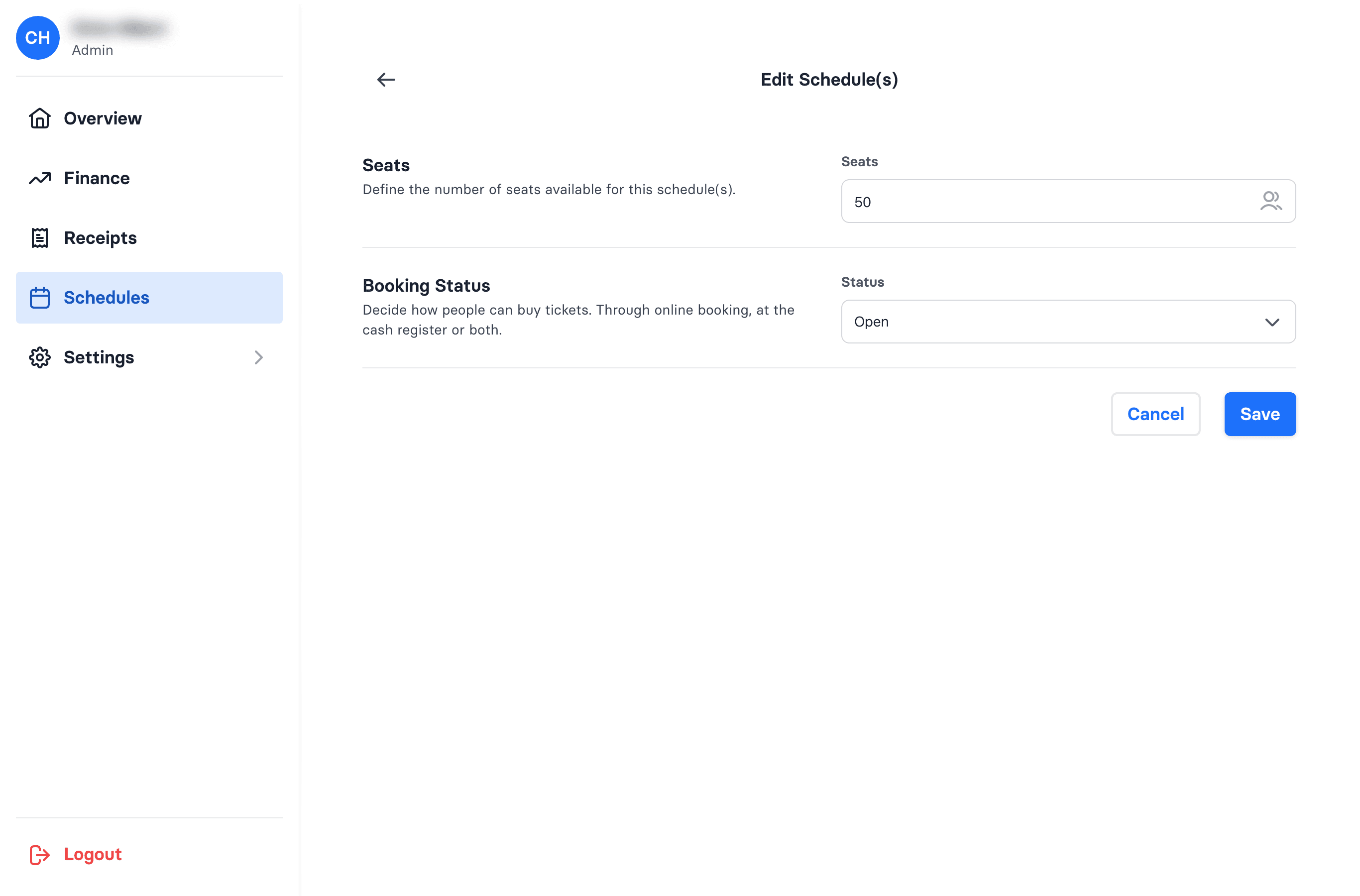
Only two things per slot:
- Seats — the total seats available for that slot.
- Booking Status — Open (sold online and at the register), Closed (not sold), or POS Only (sold only at the cash register, hidden from online booking).
You can't change a slot's time, date, or offer here — only seats and status.
Bulk edit
Select multiple slots and choose Edit to apply the same change to all of them — handy for closing a whole day. Leave a field blank to keep each slot's existing value; only the fields you fill in are changed.
Good to know
- Closing a slot does not cancel existing bookings. It only stops new bookings — anyone already booked keeps their tickets. To cancel and refund, handle each booking from POS → Bookings.
- The app won't stop you setting seats below the number already booked, so double-check before reducing capacity on a busy slot.
Creating new time slots
Adding brand-new or recurring time slots isn't done from this screen. If you need new slots set up, contact wakesys support.