How to add staff and set their permissions
Updated Thu Jun 04 2026 00:00:00 GMT+0000 (Coordinated Universal Time)
You add team members by granting roles to an existing user account. You need the Admin role to manage staff. (There's no invitation email — the person becomes staff immediately.)
Add a staff member
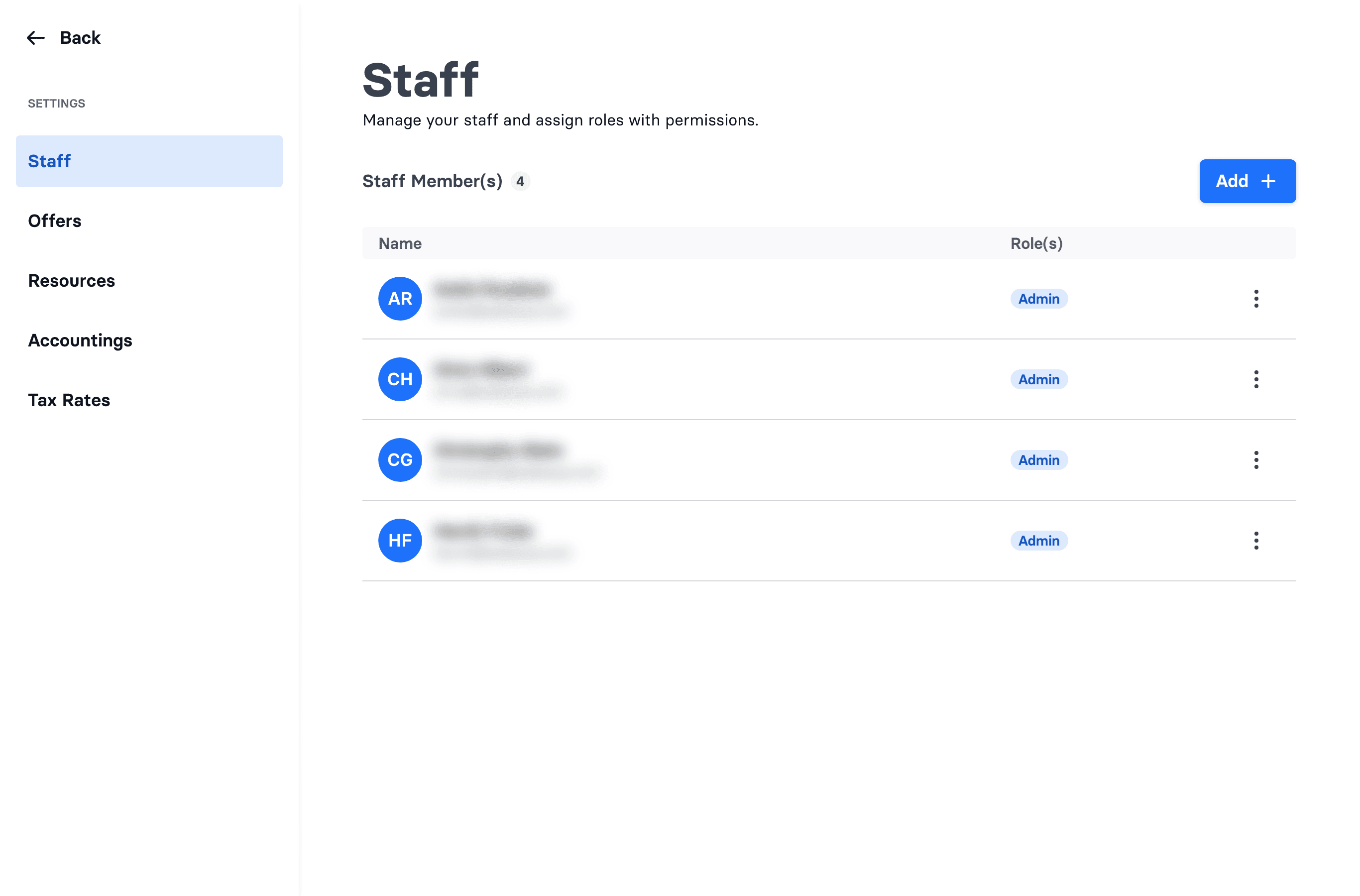
- Go to Admin → Settings → Staff.
- Click Add.
- Search for the person and select them. They must already have an account in the system — for example a customer who signed up online, registered at an on-site kiosk, or was added during a sale at the cash register.
- On the Roles page, tick Admin, Cashier, or both (at least one is required).
- Click Save.
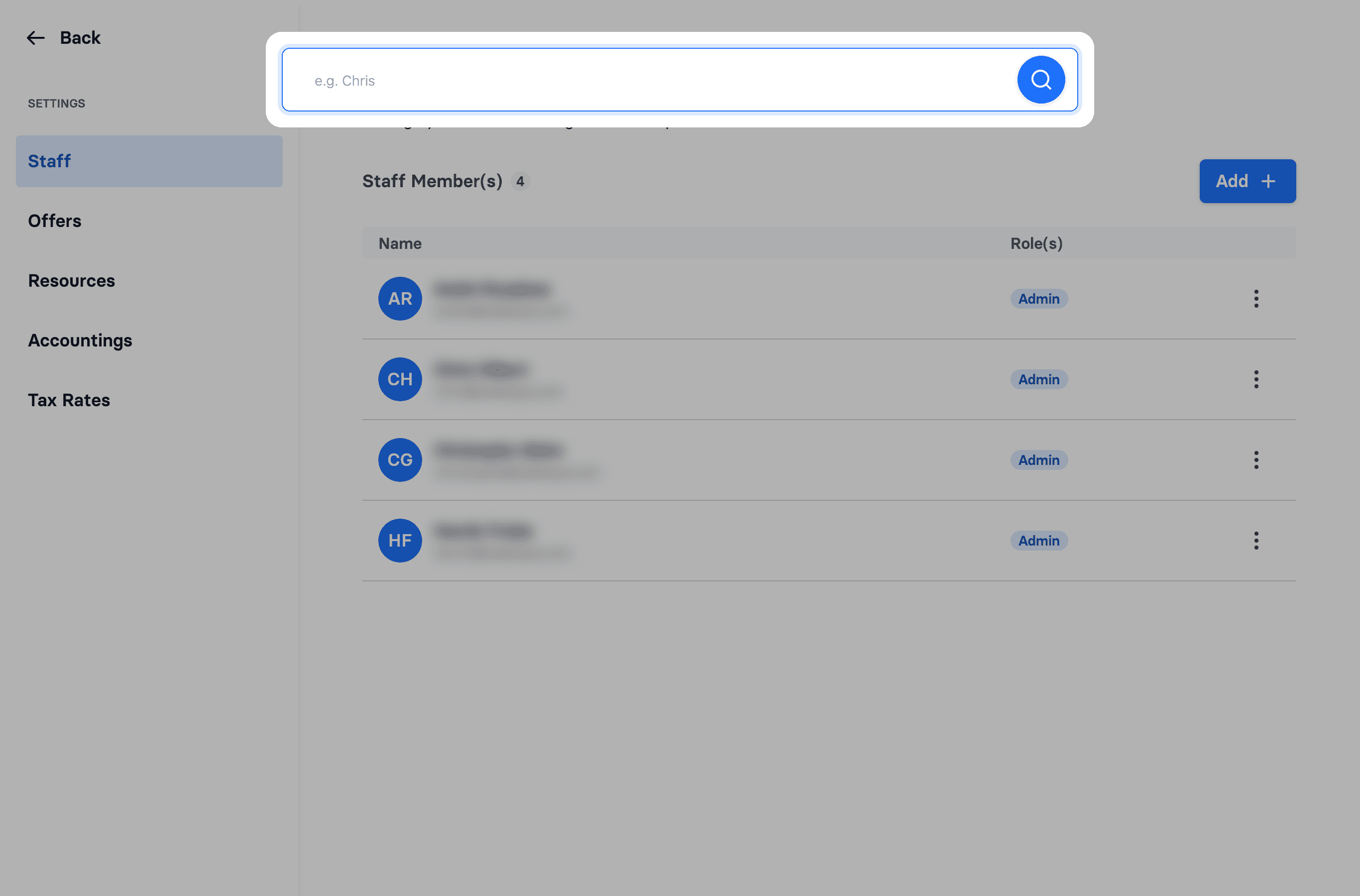
The person can now sign in with their existing account. If they've never set a password, they use Forgot password? on the login page first.
Choose a role
- Admin — full access to the park: settings, resources, offers, schedules, staff, receipts, and finance.
- Cashier — the cash register (POS), customer search, and schedules. Cashiers can't see finance, receipts, or settings like Offers, Resources, Tax Rates, and Staff.
Can't find the person in the search?
The Add search only finds existing accounts. If they're brand new, they first need an account — the quickest way is to have them sign up, or create them during an on-site registration or a sale — then add them as staff.
Change a role later
Go to Settings → Staff, open the row's ⋯ menu, choose Edit, adjust the role checkboxes, and Save.