How to cancel or refund a booking
Updated Thu Jun 04 2026 00:00:00 GMT+0000 (Coordinated Universal Time)
You cancel and refund from inside the booking at the POS. You can refund everything or just selected items, in full or by a percentage.
Cancel / refund
- In the POS, open Bookings and open the booking.
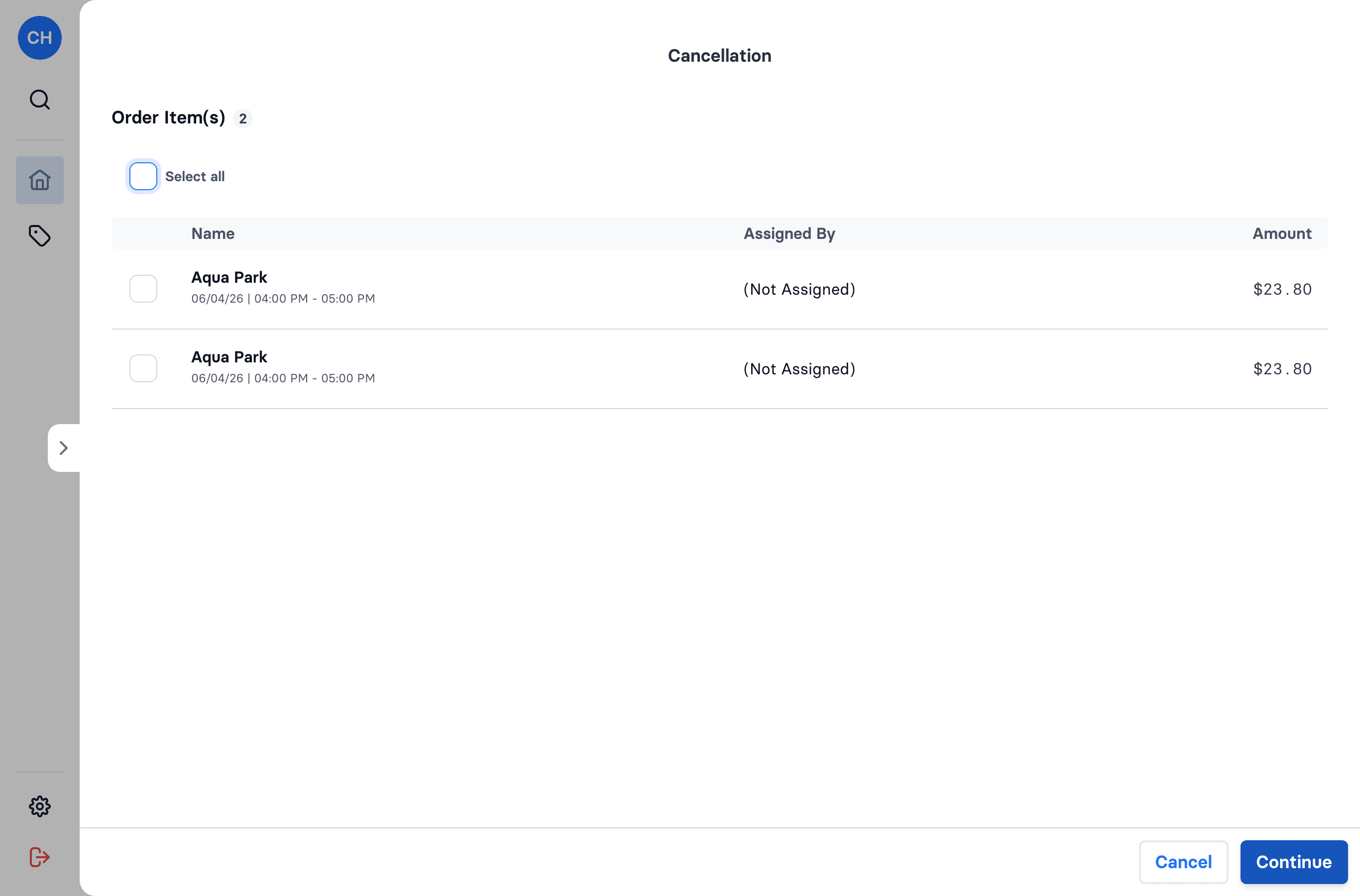
- In the header menu, choose Cancellation.
- Select the order item(s) to refund (tickets and/or add-ons), then Continue.
- Set the refund percentage (use a shortcut like 50% / 100% or type any value 0–100). It applies to all selected items.
- Choose a Cancellation Reason: Customer Request, Weather, Reschedule, Operational Issue, Overbooking, Illness, Staff Error, Safety Requirements, or Other.
- Choose a refund method: Cash or Refund to Origin (back to the original card).
- Review and confirm with Refund.
Where does the refunded money go?
- Refund to Origin sends the money back to the customer's original payment method — the card or account they paid with — through Stripe. There is no prepaid balance or store credit in wakesys: the money goes back the way it came in. Stripe refunds usually take a few business days to appear on the customer's statement.
- Cash hands the refund back in cash at the desk.
Customers don't cancel a confirmed booking themselves — they contact you, and a staff member processes the cancellation and refund at the cash register (the steps above).
Notes
- Partial refunds are supported — refund a single ticket, or apply a partial percentage.
- Refunding all of a booking's items leaves it showing Booking Cancelled (nothing un-refunded remains).
- Any POS user can process a cancellation/refund.