How to set up wakesys on your iPads
Updated Thu Jun 04 2026 00:00:00 GMT+0000 (Coordinated Universal Time)
wakesys runs on iPads straight from Safari — there's no App Store download. You open the right web address, then add it to the Home Screen so it runs full-screen like an app. There are two different iPad setups.
Prefer to watch? See the video walkthrough.
1. Tablet (signing pad) — paired to a cash register
This is a customer-facing screen tied to a specific point of sale. It sits at the desk showing your logo, and the cashier pushes waivers to it for guests to sign.
- On the iPad, open Safari and go to your point of sale's Tablet address (find it on the Quick Links in Admin, which lists each register's tablet link).
- Sign in with a staff account if prompted.
- In Safari, tap Share → Add to Home Screen so it opens full-screen.
- Leave it on the desk — it idles on your park logo and shows a waiver whenever a cashier sends one to it.
See Send a waiver to the tablet for how the cashier uses it.
2. On-site registration kiosk — self-service sign-up
This is a standalone station where guests register themselves before visiting the desk.
- On the iPad, open Safari and go to your On-site registration / Sign Up address (also listed under Quick Links in Admin).
- Tap Share → Add to Home Screen for full-screen use.
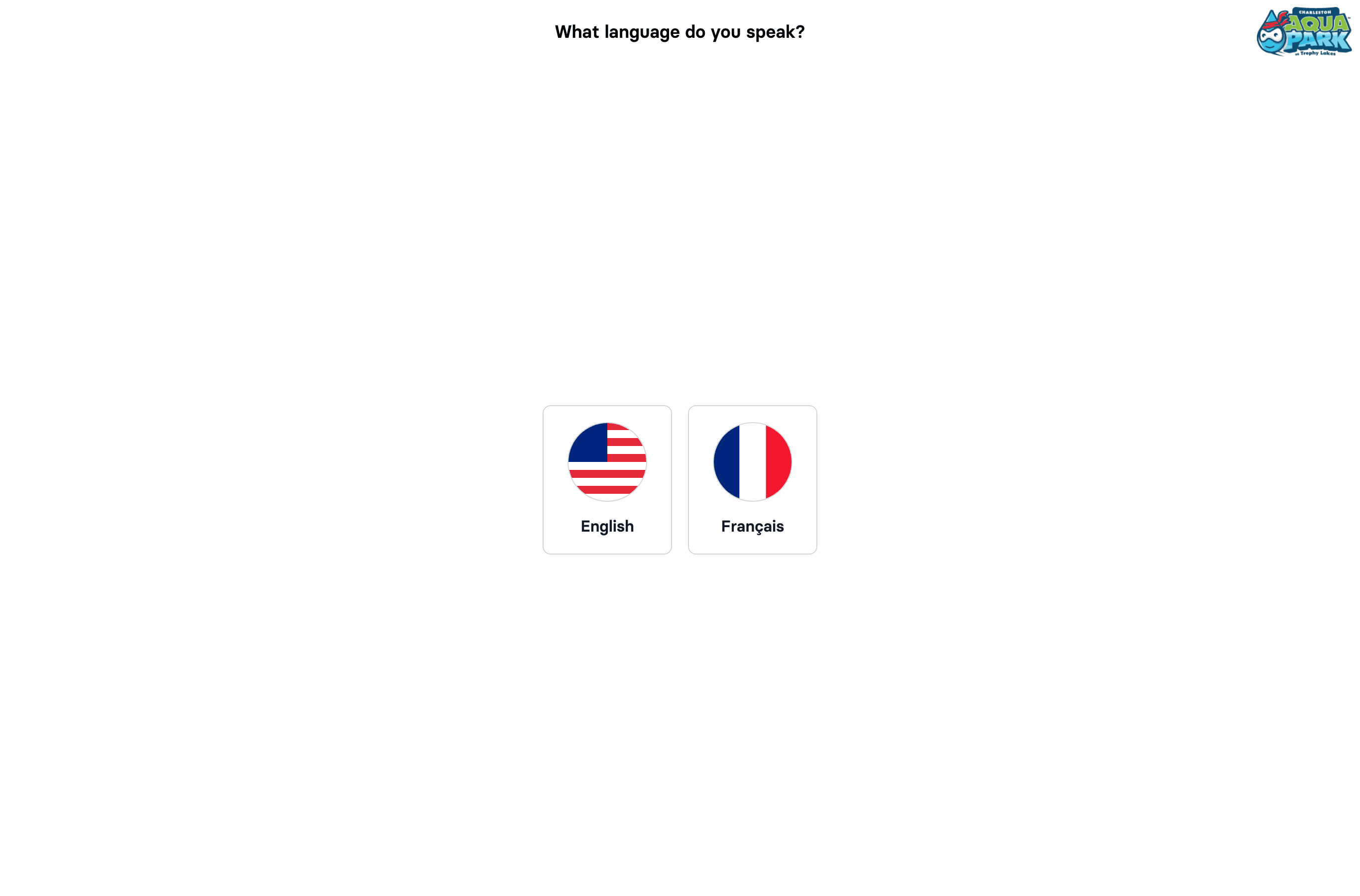
- Guests then self-register: choose a language → Adult or Child (a child must be registered under a guardian) → enter details and accept the legal documents → sign the waiver → optionally add family members → and are directed to the nearest cashier.
Tip: lock the iPad to the wakesys screen (iOS Guided Access) during self check-in so guests can't browse away. Keep the iPad on power at the desk during busy sessions.