How to send a waiver to the signing tablet
Updated Thu Aug 20 2026 00:00:00 GMT+0000 (Coordinated Universal Time)
If you have a signing tablet paired with a cash register, the cashier can send a waiver to it for the guest to sign on the spot.
Send a waiver to the tablet

- In the POS, open the customer's profile.
- Tap Waiver (compliance). For a child, first select the Legal Guardian.
- The waiver appears on that register's tablet. The guest reads and signs it there.
- When they finish, the cashier's screen updates automatically. You can also cancel a pending request, which returns the tablet to its idle (logo) screen.
What the guest sees
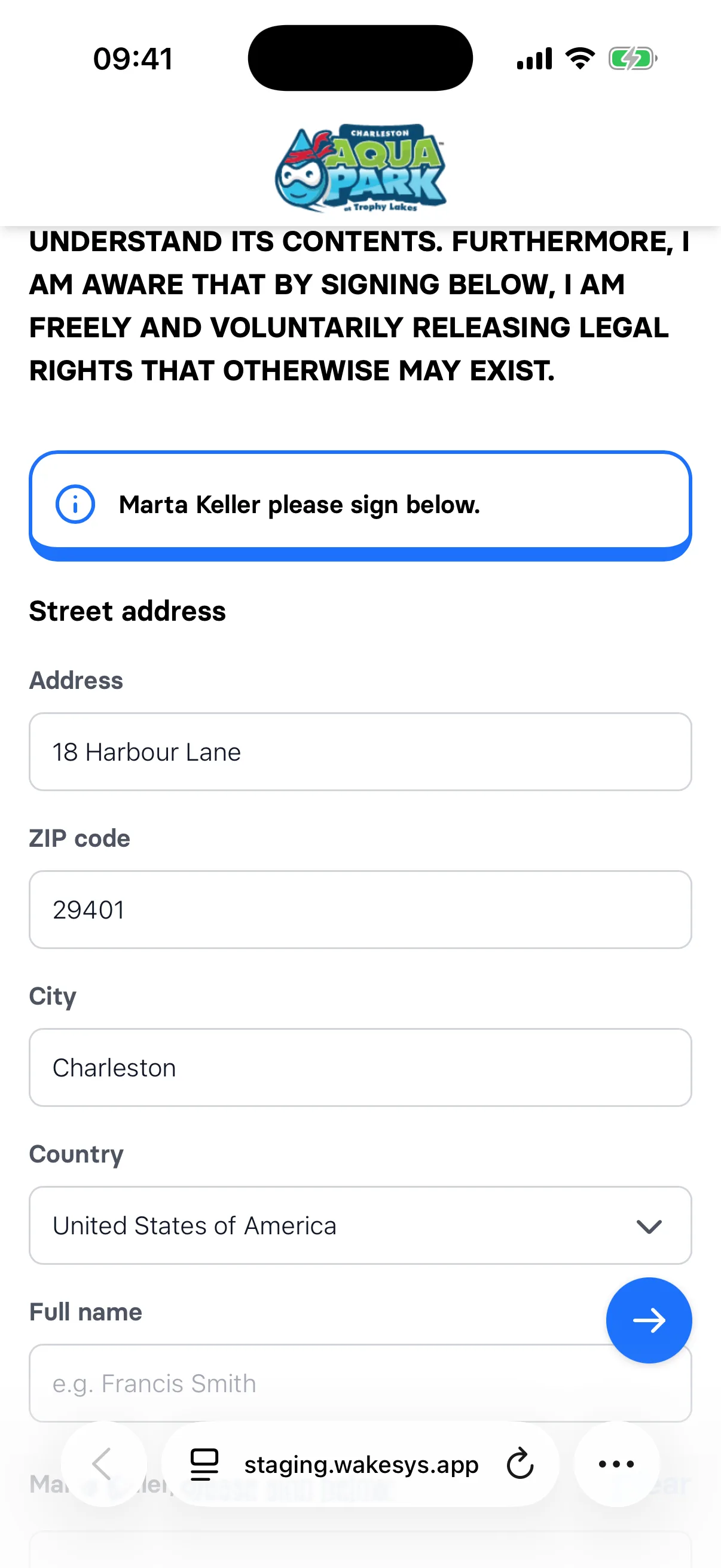
They read the Release of Liability and tick a single box confirming they agree to it and consent to signing electronically. If the guest has no address on file but a family member does, the address fields arrive prefilled from that family member — they can correct them before signing.
Setup
The tablet is a per-register iPad you open from the register's Tablet link and add to the Home Screen — see How to set up wakesys on your iPads. For how waivers work overall, see How waivers work.