Offer booking rules — minimum quantity, exclusive booking, in-progress, arrive early
Updated Thu Aug 20 2026 00:00:00 GMT+0000 (Coordinated Universal Time)
Four settings on each offer decide how customers can book its time slots. You'll find them on the offer form in Admin → Settings → Offers, below the Image section, on both the Create and Edit screens. You need the Admin role.
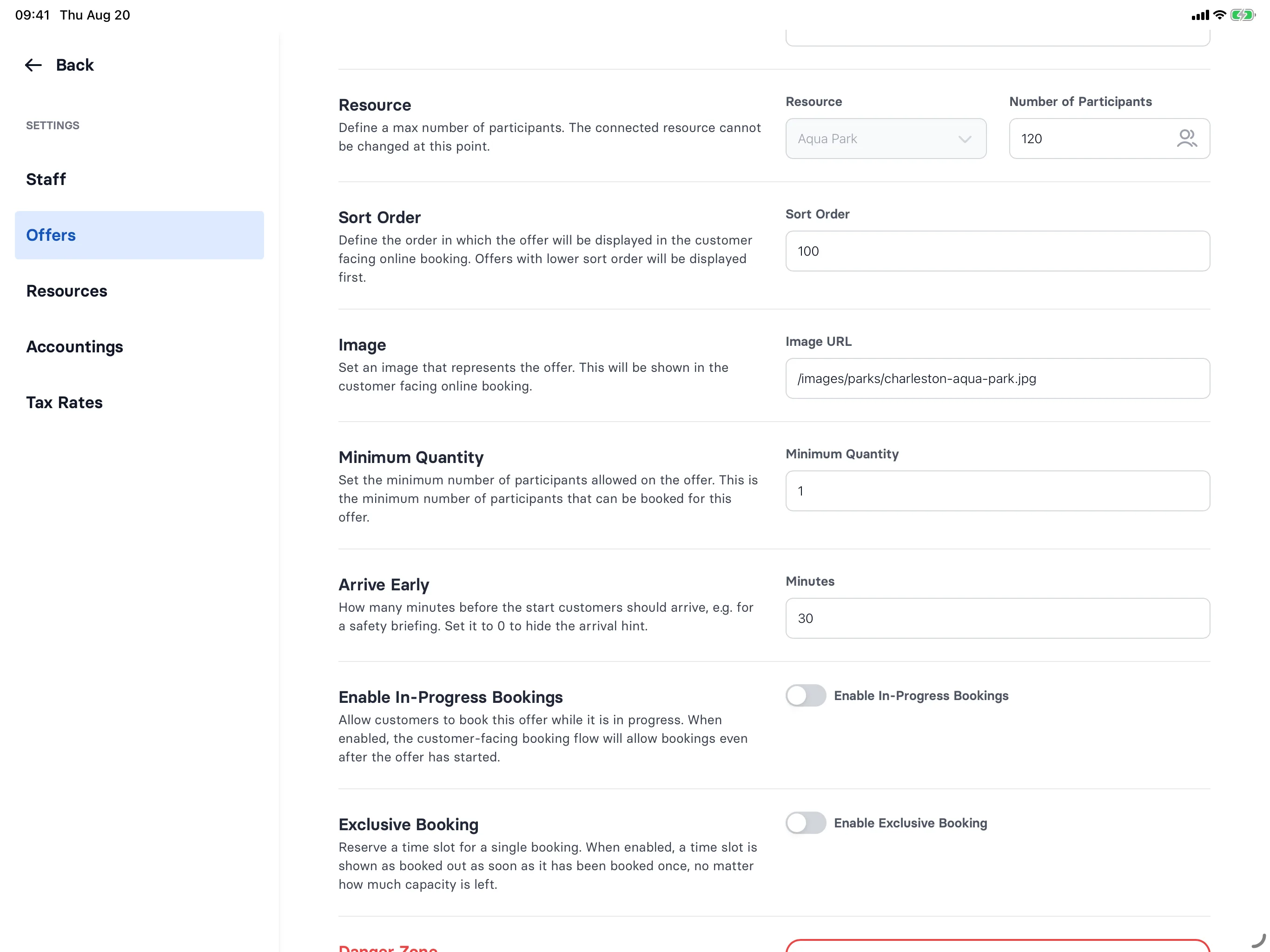
Minimum Quantity
The smallest number of participants a customer can book at once. Leave it at 1 for a normal offer; set it higher for something that only runs with a group, like an escape room.
When it's above 1, the time-slot list shows the requirement up front:
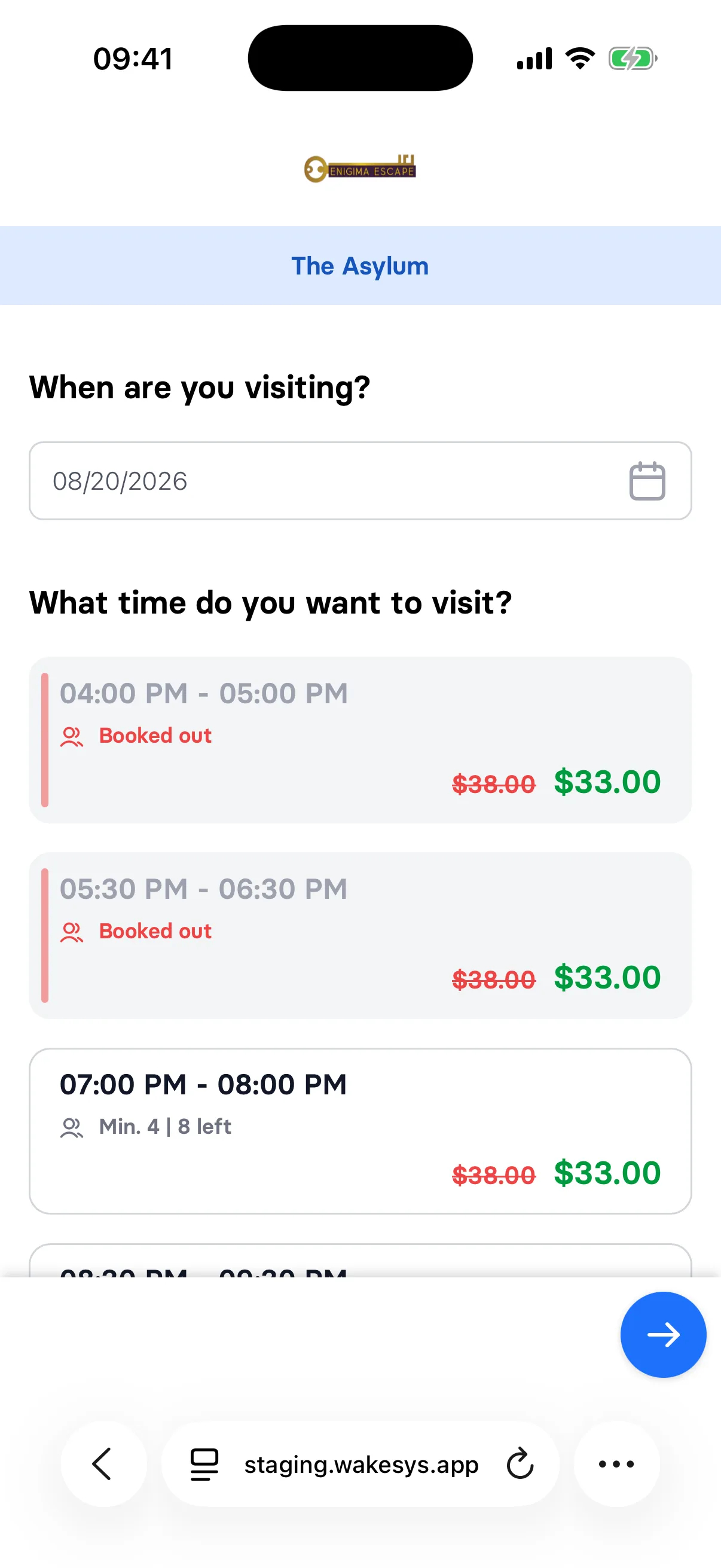
In the participant picker, the + button jumps straight from 0 to your minimum, and − drops from the minimum straight back to 0. Customers can't get stuck on a number you won't accept.
- The
Min.label only appears while seats are comfortably available. Once a slot is almost or fully booked out, that warning takes over the label instead. - The minimum is also enforced on the server, so it can't be bypassed.
Arrive Early
How many minutes before the start time customers should turn up — for a safety briefing, kit fitting, or check-in queue. It defaults to 30.
The number you set appears in two places for the customer:
- a row on the assign tickets page — "Arrive 30 minutes earlier"
- a line in the booking confirmation email — "Please arrive 30 minutes prior to your booking."
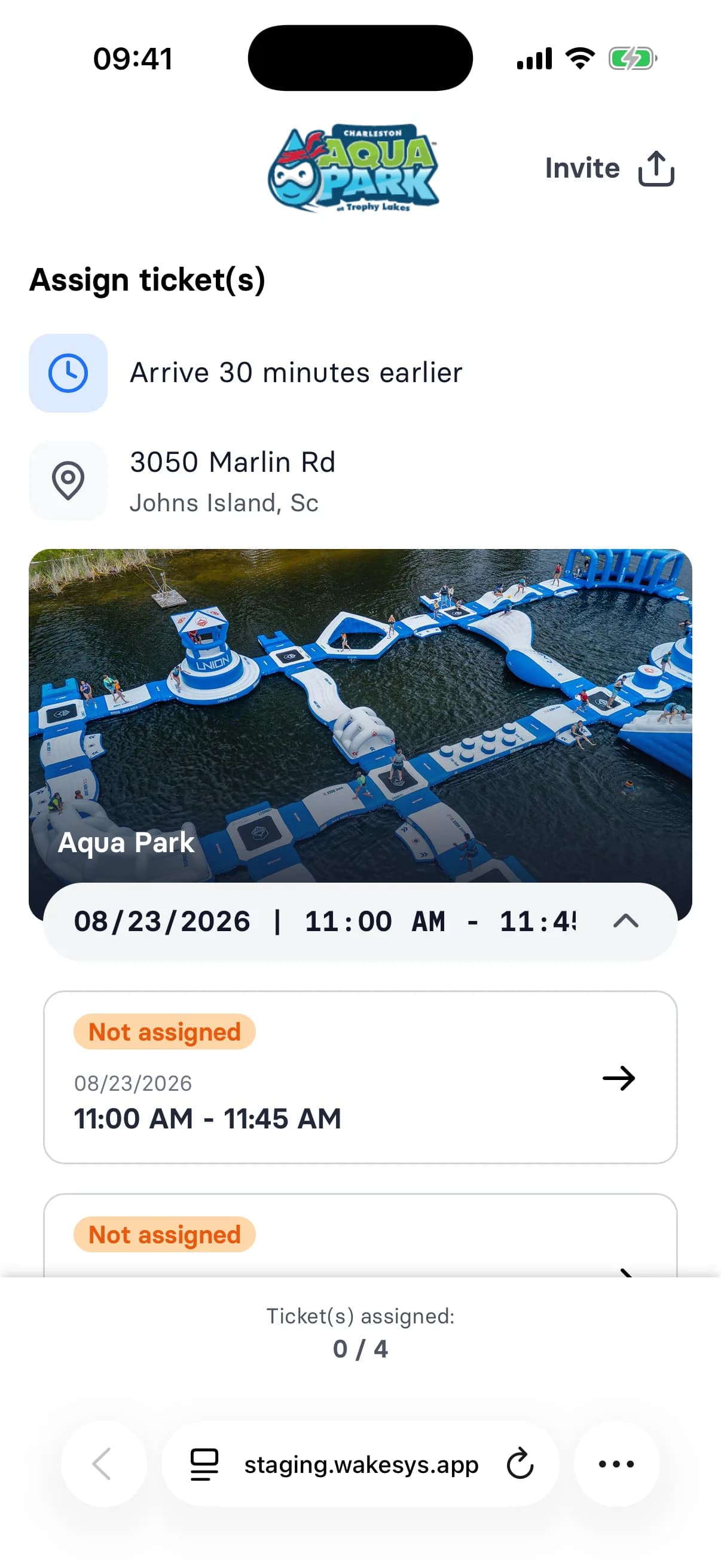
Set it to 0 to hide the hint completely — both the page row and the email line disappear.
Enable In-Progress Bookings
Normally a time slot stops being bookable the moment it starts. Switch this on and a slot stays on sale until it ends, marked (already started) in amber.
This only affects today — it has no effect on future dates. It's for drop-in activities where joining late is fine, like an open swim session. Leave it off for anything with a fixed briefing or start.
Exclusive Booking
Hands the whole time slot to a single booking. As soon as somebody books the slot, everyone else sees it as Booked out — no matter how many seats are still free.
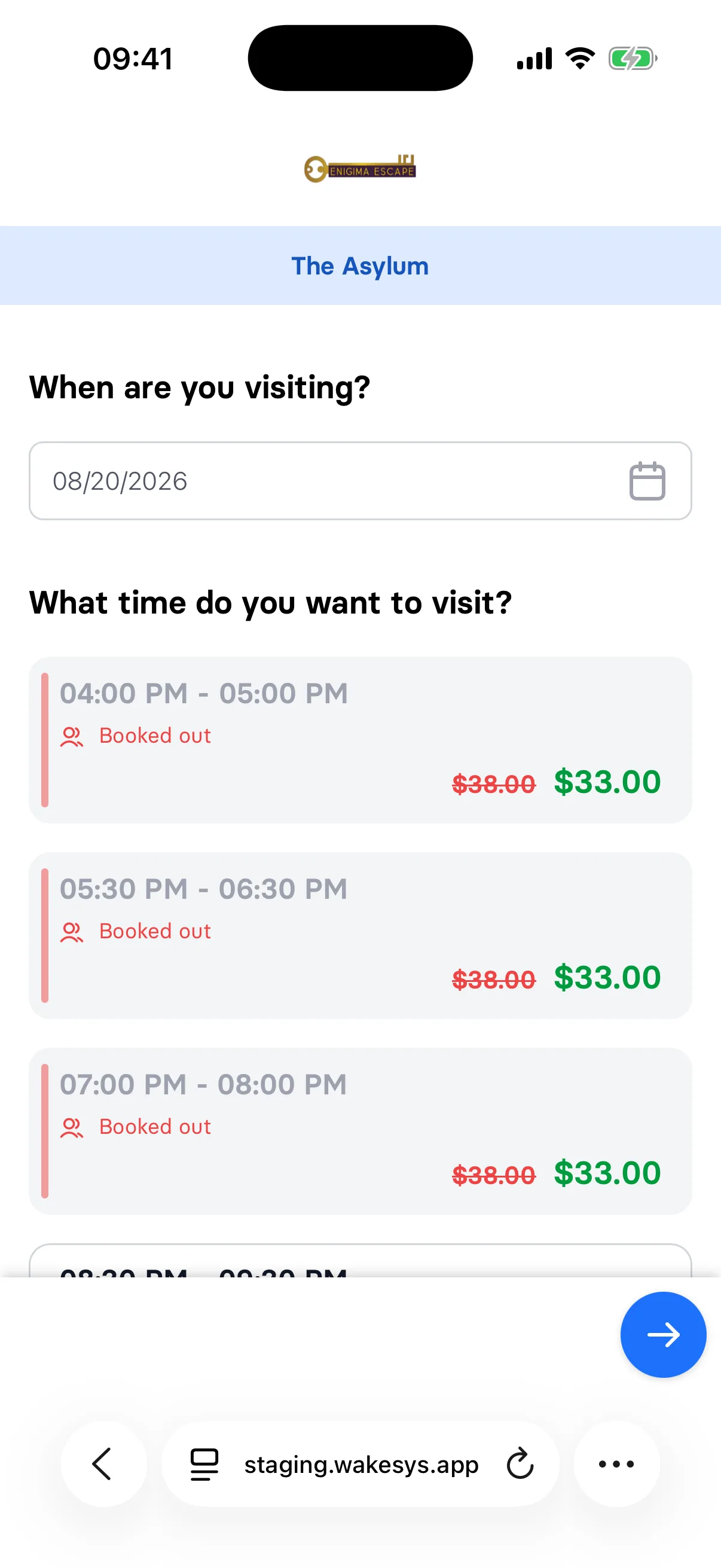
Use it for private hire: an escape room, a whole-lane booking, a party slot.
- The customer who holds the slot can still add more people to their own booking — their own seats don't lock them out.
- Upgrades are hidden for a slot that's already been taken exclusively.
- Capacity still matters: it caps how many people that one booking can bring.
Notes
- All four settings are per offer, not per time slot. To vary them, you need separate offers.
- Changing a setting affects new bookings only — it never cancels or alters bookings already made.
- These settings don't replace the slot's Booking Status (Open / Closed / POS Only), which controls where a slot sells. See Booking statuses explained.