How to reset a staff member's password
Updated Thu Jun 04 2026 00:00:00 GMT+0000 (Coordinated Universal Time)
There is no admin button to reset a staff member's password — staff reset their own from the login page. (Only staff have a password; customers don't have a login or password at all.) Here's how to guide a staff member through it.
Reset your password
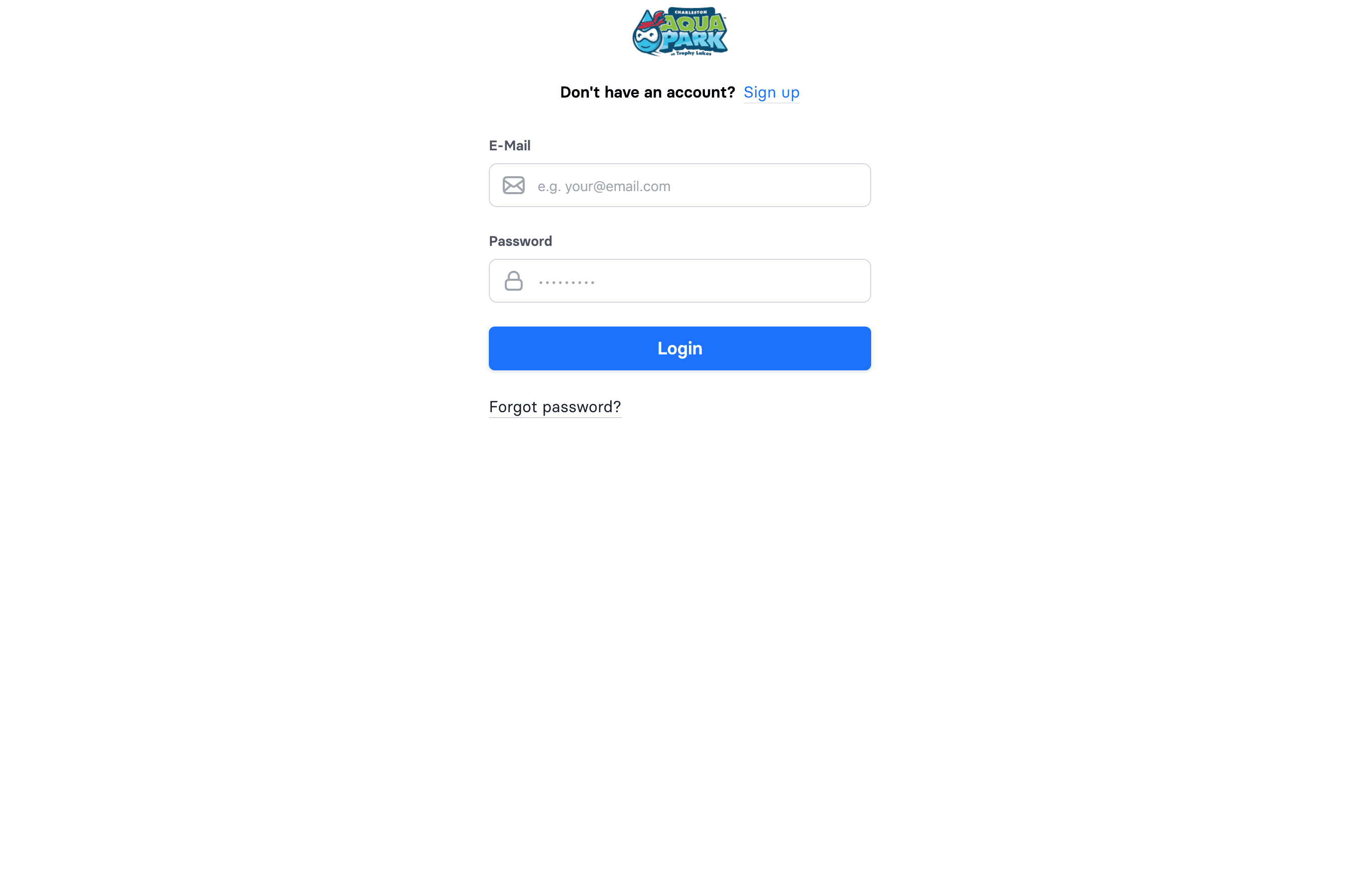
- On the login page, click Forgot password?
- Enter your email address and click Send reset link.
- Check your email for the reset link and open it. The link is valid for 30 minutes.
- Enter a new password (at least 6 characters) and confirm it.
- You'll be sent back to the login page — sign in with the new password.
If the link has expired, just request a new one from Forgot password? again.
"I never set a password"
If a team member was first added to the system on-site (at an iPad kiosk) or during a sale at the cash register, their account may have been created without a password. They simply use Forgot password? once to set one, then they can sign in.
Admins can't reset a password on someone's behalf — always point the person to Forgot password? on the login screen.