How to assign tickets to participants
Updated Thu Aug 20 2026 00:00:00 GMT+0000 (Coordinated Universal Time)
A purchased ticket starts out not linked to anyone — it shows as Not assigned. Assigning a ticket links it to the specific person who will use it (so they can be checked in and sign a waiver). Assigning doesn't buy anything.
Assign a ticket
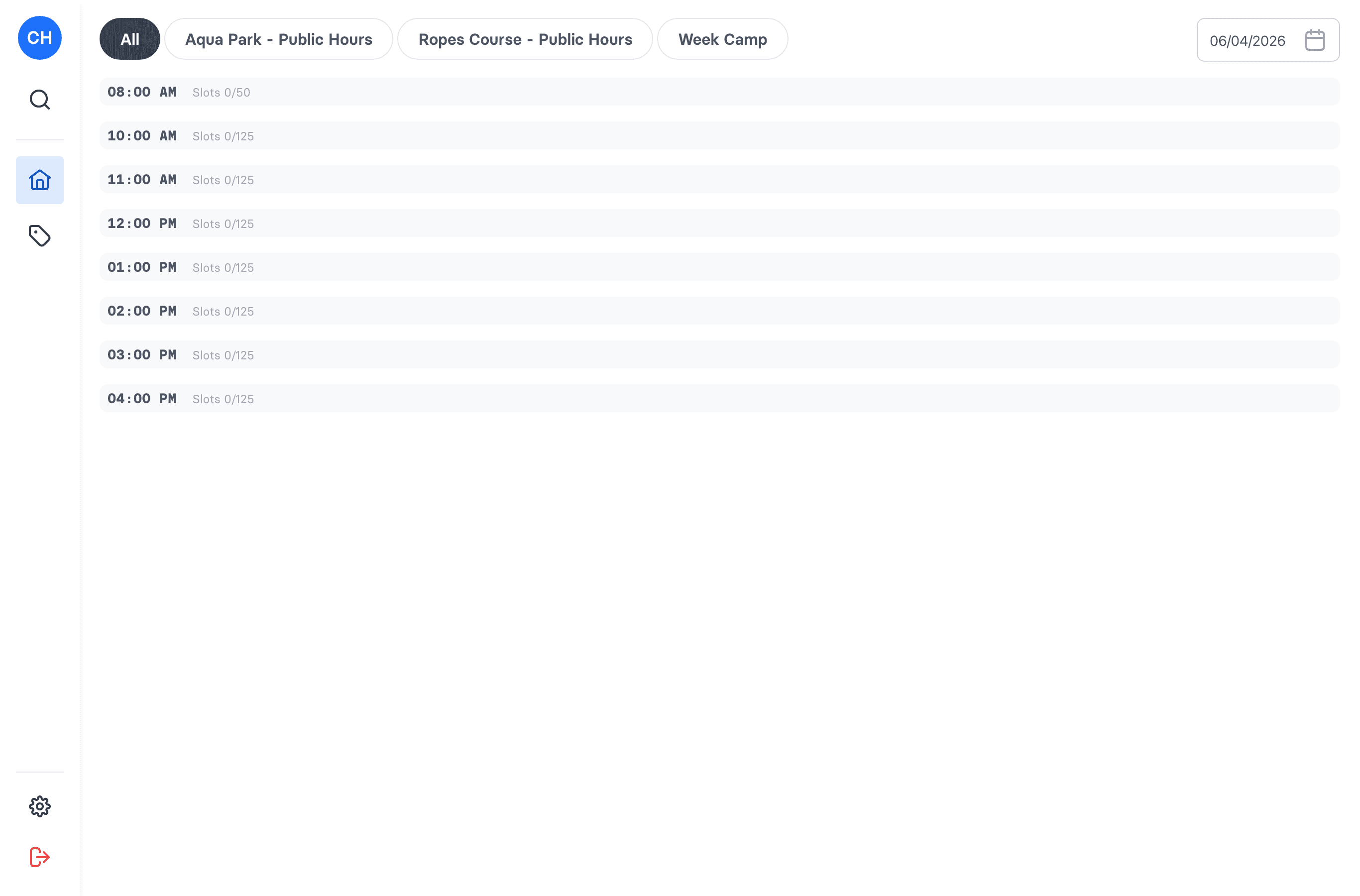
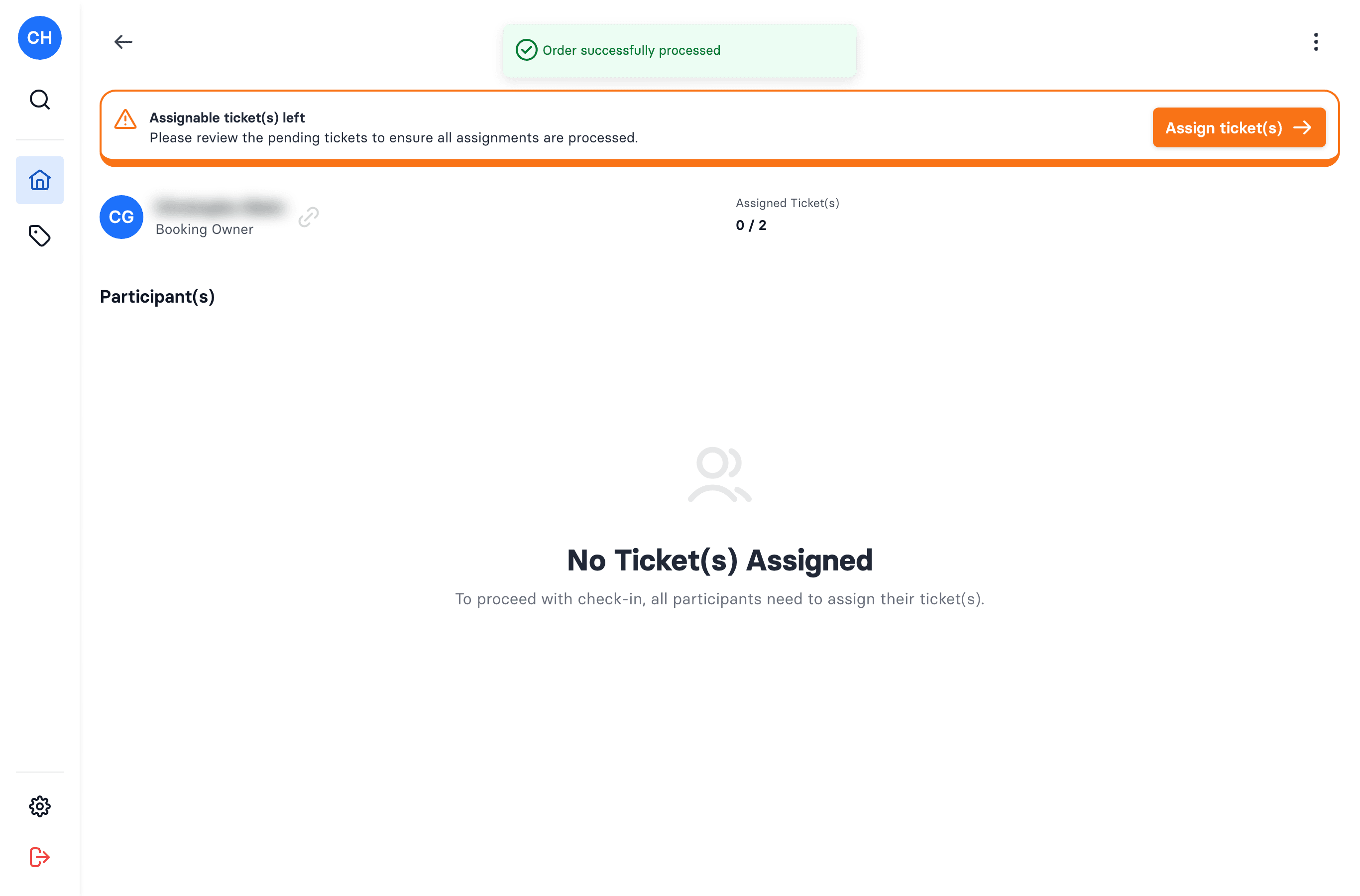
- In the POS, open Bookings and open the booking. A notice reads Assignable ticket(s) left when tickets still need a person.
- Click Assign ticket(s).
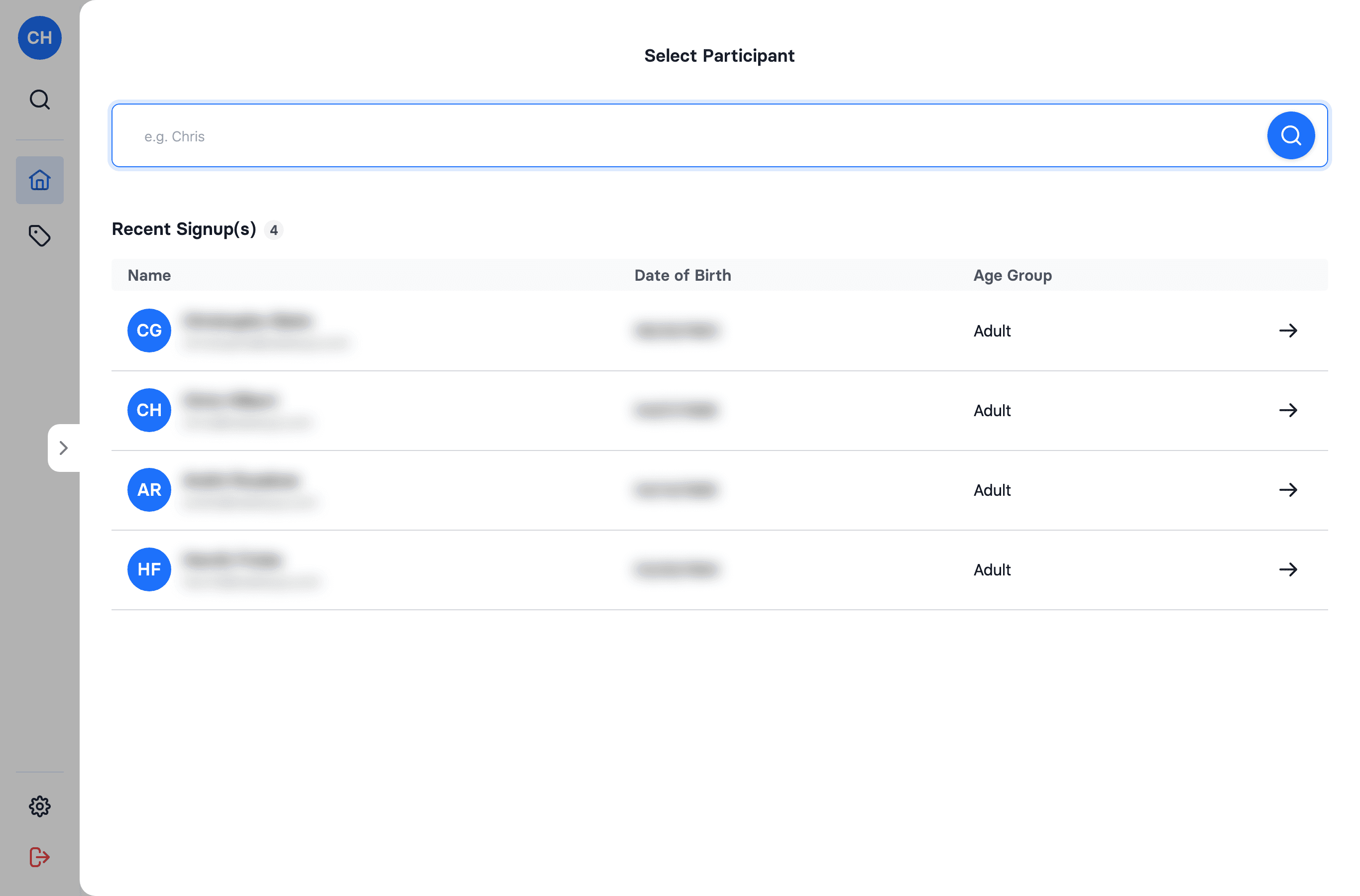
- Select the participant — search for the person or pick them from recent sign-ups.
- Tap Assign on the ticket (or assign several at once).
Reassign or unassign
Open that person's Assigned Ticket(s) (from their row in the booking) and choose:
- Reassign — move the ticket to a different person.
- Unassign — free the ticket so it's unassigned again.
You can't unassign a ticket once the person has been checked in — undo the check-in first.
Can't find the person you want to assign to?
You can only assign a ticket to someone who already has an account. If a child or family member isn't in the system yet, they need to be registered first — and that's done through the on-site signup, not the cash register. See How a visitor adds their children after registering.
Sending the invite link instead
Rather than assigning everyone yourself, you can let the group do it. Open the booking's Invite option and share the link — on a tablet or phone Share link opens the device's share sheet; on a computer it's Copy link. Anyone with the link can assign the remaining tickets and sign their own waiver.
Why it matters
Only participants who have a ticket assigned to them appear in the booking's participant list, and only they can be checked in. So assign first, then check in.