How a visitor adds their children (or partner) after registering
Updated Thu Aug 20 2026 00:00:00 GMT+0000 (Coordinated Universal Time)
A common situation: a visitor registered themselves at the on-site signup but didn't add their children (or partner). Now they're at the desk and you need to select a child for a ticket — but the child isn't in the system yet.
The child must be added through the on-site signup, not the cash register. The parent simply goes back to the on-site signup and registers again using the same details — the system recognises their existing account and lets them add family to it.
What the visitor does (at the on-site signup)
-
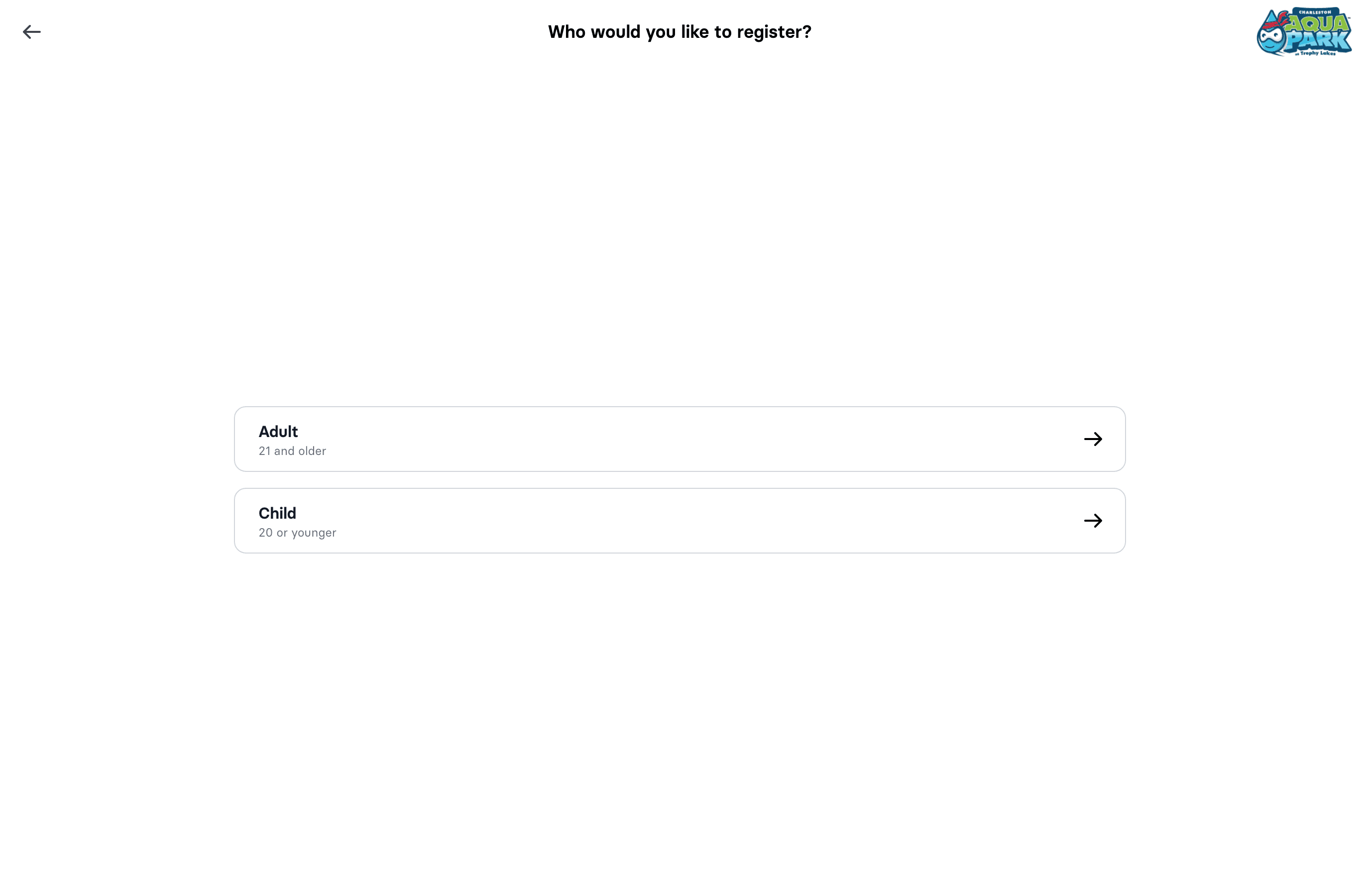
Open the on-site signup and choose a language, then Adult.
-
Re-enter their details — importantly, the same email and phone number as their first registration. The system matches them to their existing account (it matches on email or phone), so no duplicate account is created.
-
They continue to "Would you like to add another person?" and choose:
- My own child
- Not your own child (registering on someone's behalf)
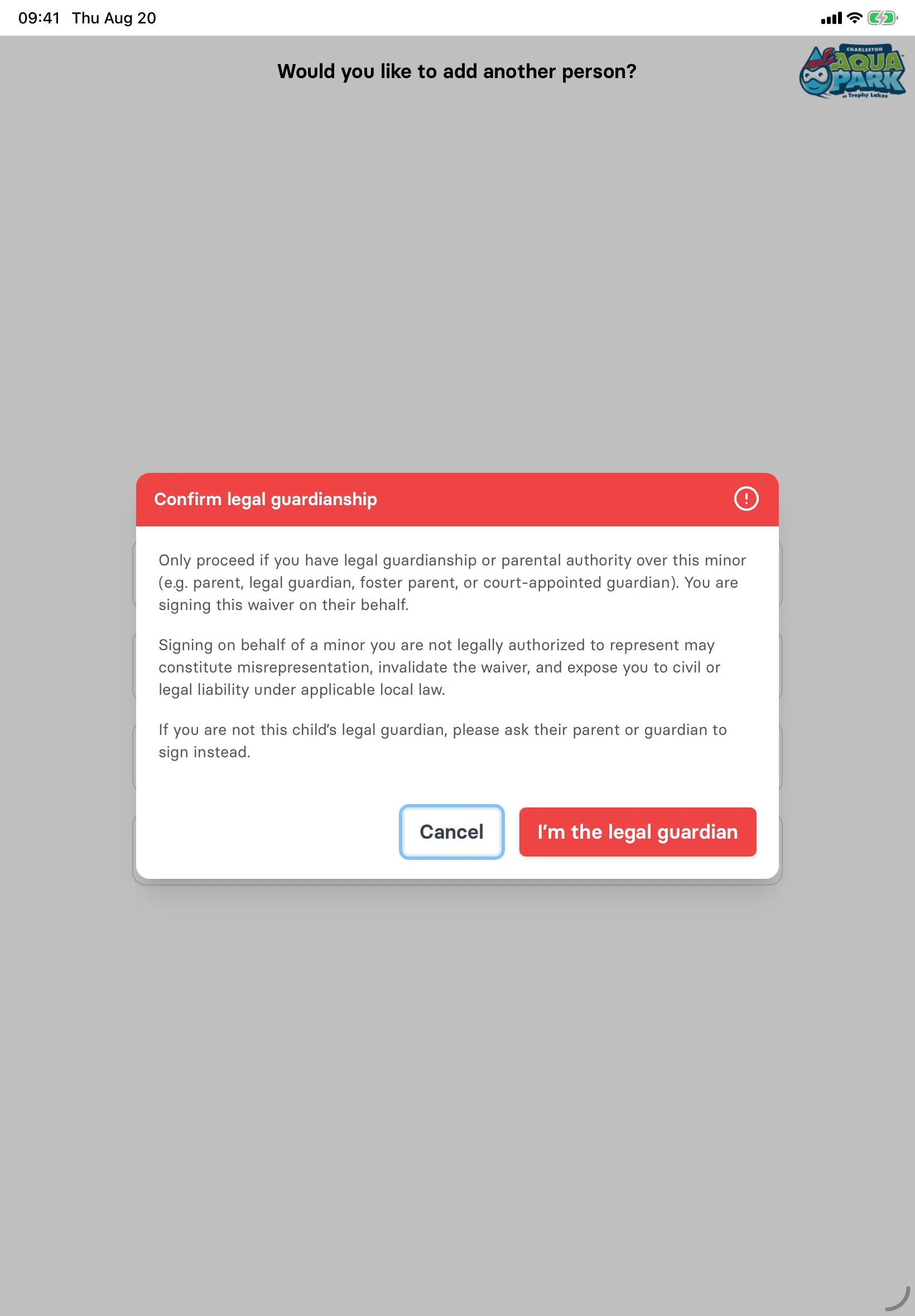
- Adult family member (e.g. a partner) Choosing Not your own child first opens a Confirm legal guardianship dialog — only a parent or legal guardian should continue. Because the kiosk has no invite link to fall back on, it asks them to fetch the child's parent or guardian instead.
-
Enter the child's details — name, gender, and date of birth (no email or phone for a child).
-
The guardian signs the child's waiver. If the guardian has an address on file and the child doesn't, the address fields are prefilled from the family — still editable.
-
Add more people if needed, then choose No, thanks → Complete registration.
The child is now created and linked to the parent's account.
Then, at the cash register
When you assign the ticket to a participant, search for the child by name (or pick them from recent sign-ups) — children now appear in the participant search. See Assign tickets to participants.
Important
- You can't register a child (or any new person) from the cash register's Sale screen — it only lets you pick an existing adult as the booking owner. New people are created through the on-site signup (or, for online bookings, when the customer claims tickets).
- This is different from a brand-new online booking, where a child is registered while the booking owner claims tickets — see How to register a child.