How to add tickets or add-ons to an existing booking
Updated Thu Jun 04 2026 00:00:00 GMT+0000 (Coordinated Universal Time)
To put more tickets or add-ons onto a booking a customer already made, use Add Product(s) from inside that booking. This rings up a new sale that's attached to the same booking — it does not change the tickets that were already purchased.
Add products to an existing booking
- In the POS, open Bookings and open the booking.
- In the booking's header menu, choose Add Product(s).
- Pick the date and time slot(s) for the extra tickets (and switch to the Add-ons tab for any extras). Availability reflects the live seat count.
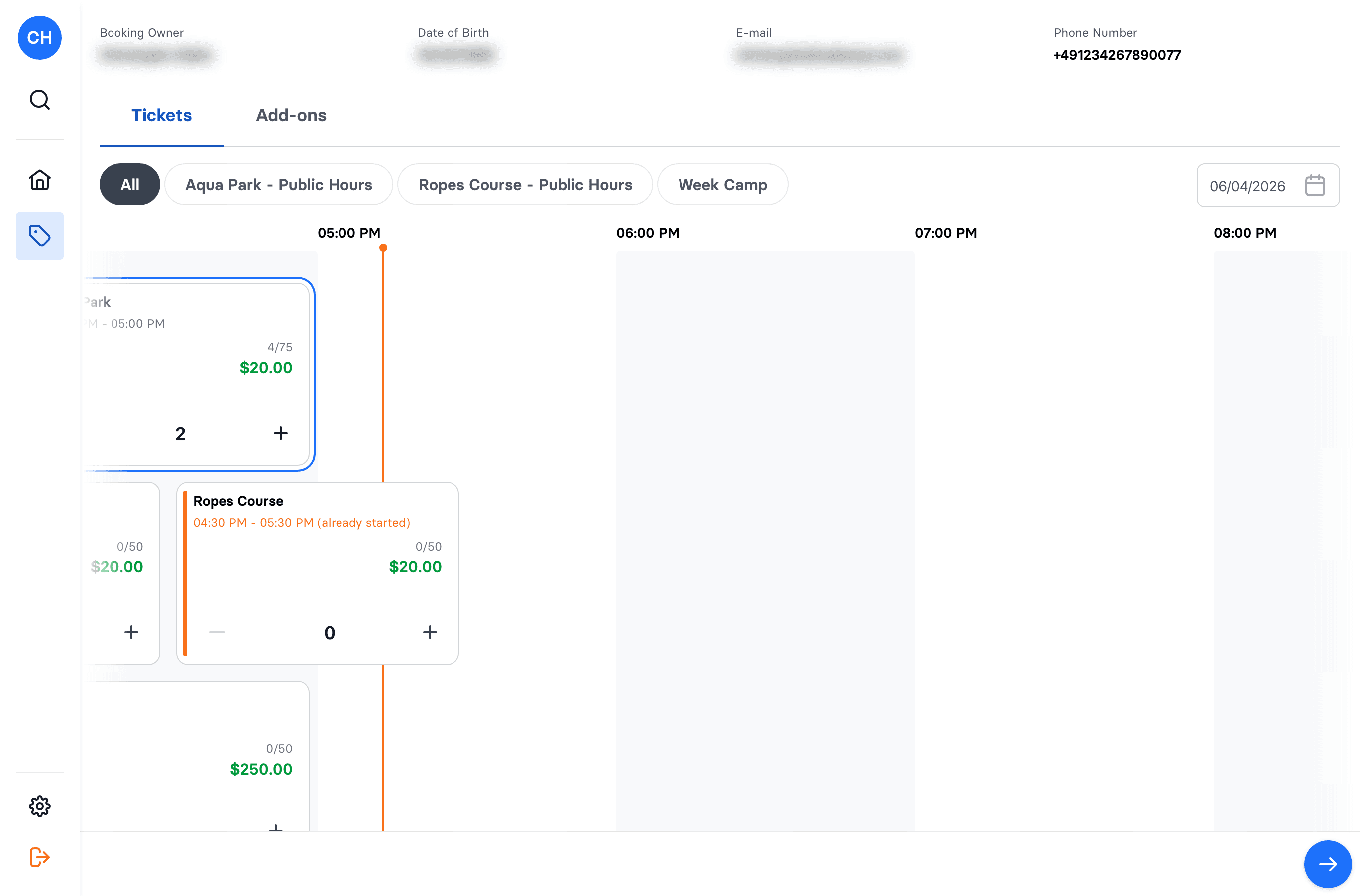 4. Continue to checkout and take payment: Cash, Terminal (card reader), or Credit card.
The new tickets show up under the same booking. Each new participant still needs to be assigned a ticket and sign the waiver before taking part.
Important: what this does and doesn't do
- It adds new tickets/add-ons as a new order on the same booking.
- It does not let you edit, re-price, or change tickets that were already bought. There's no "edit ticket" — to remove or change something already paid for, use Cancellation (refund) and, if needed, add the correct item.
Related but different
- Selling a ticket from the Sale screen starts a brand-new booking for a customer — not the same as adding to an existing one. See Sell a ticket at the POS.
- Assigning a ticket links an already-purchased ticket to a specific person — it doesn't buy anything. See Assign tickets to participants.