Share and test your online booking
Updated Fri Jun 26 2026 00:00:00 GMT+0000 (Coordinated Universal Time)
Your online booking site lets customers browse offers, book a time slot, and pay by card on their own — no staff needed. Here's how to find your link, share it, and confirm it works before you send customers to it.
Find your booking link
- Log in to Admin and open the Overview page.
- In Quick Links, click the Online Booking card.
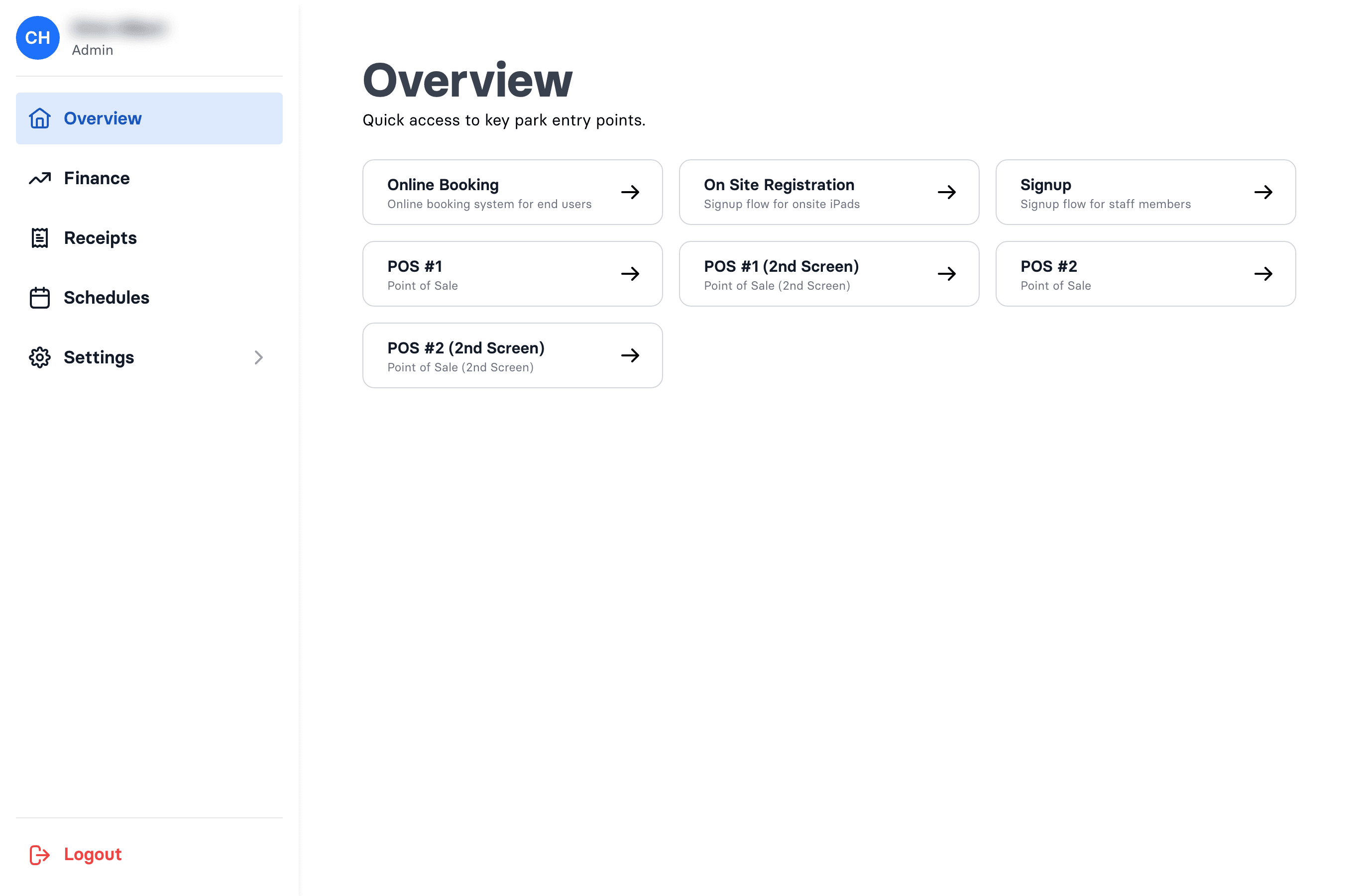
Your booking address is https://wakesys.app/PARKNAME/booking (replace PARKNAME with your
park's short name — for example charlestonaquapark). This is the public page customers will use.
Share it with customers
The booking page is a normal web link, so you can put it anywhere customers will find it:
- A "Book now" button or link on your own website
- Your social media profiles and posts
- Your Google Business Profile
- Email signatures and newsletters
Make sure your offers are bookable
A customer only sees an offer online when it's active and has an Open upcoming time slot. If an offer isn't showing up:
- Check that its slots are set to Open (not Closed or POS Only) for the dates you're running — see How to edit your schedule and Booking status explained.
- Remember that POS Only slots are deliberately hidden from online booking.
Run a test booking
The best way to be sure is to book a slot yourself, exactly as a customer would.
- Open your booking link in a browser (an incognito/private window mimics a first-time visitor).
- Pick an offer, choose a date and time slot, and continue.
- Enter details, accept the legal documents, and pay by card.
A test booking on the public site charges the real price — there's no discount field for customers online (discounts are applied only at the cash register). So either:
- use your cheapest offer for the test, or
- refund it afterwards from POS → Bookings — see Cancel or refund a booking.
An in-progress online order expires after 15 minutes if payment isn't completed, and is released (and refunded if it had been charged).
Confirm it worked
After paying you should see a confirmation page and email, and the booking appears in POS → Bookings. The customer then assigns each ticket to a person and everyone signs the waiver — see How a customer claims their tickets.
For the full customer's-eye view of the flow, see How customers book online.